
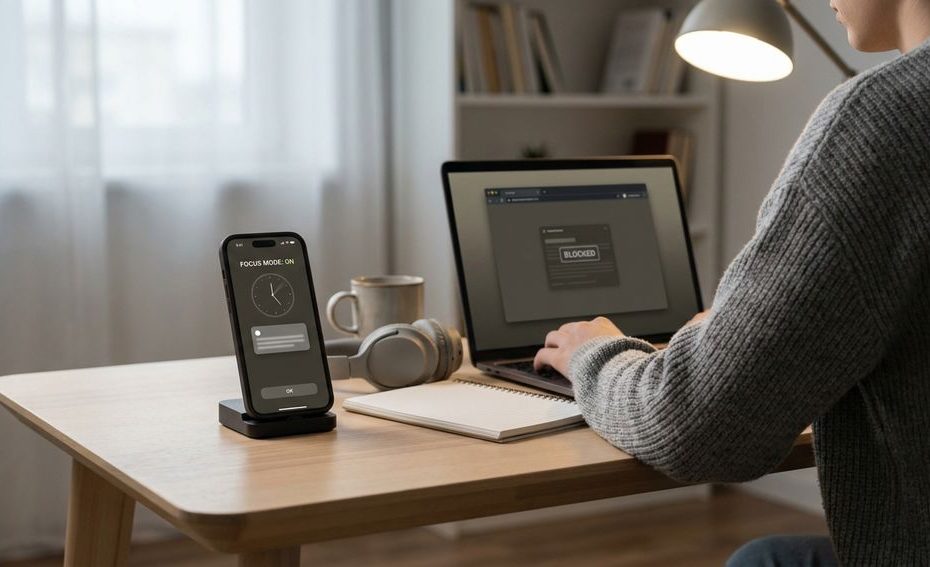
The best focus apps for studying make distractions harder to open at the exact moment you’re tempted to check them. Choose a blocker based on where you lose focus: your phone, browser, computer apps, or lack of study accountability.
You sit down to study, open your laptop, and within minutes your attention has drifted to messages, videos, or a “quick” browser tab. You don’t need another lecture about willpower; you need a setup that adds friction between you and the apps that keep stealing your study time.
This guide compares the main types of distraction blockers, from gamified phone timers to strict desktop website blockers and live accountability tools. You’ll see which apps fit your device, study style, budget, and tolerance for strict blocking.
Why Your Brain Reaches For Your Phone During Study Sessions
Your brain reaches for your phone during study sessions because distraction gives you fast relief from effort. Studying asks for sustained attention, and your phone offers novelty, social updates, entertainment, and a break from hard thinking within seconds.
That doesn’t mean you’re lazy or bad at studying. It means your environment is working against you. If your phone is unlocked, your laptop has open tabs, and notifications are active, you’re asking your attention to fight too many doors at once.
Focus apps work best when you treat them as guardrails. They don’t study for you, and they won’t fix a poor sleep schedule or unclear assignment plan. They reduce the number of choices you have to make once your session starts, which is often the difference between staying with the work and drifting away.
What To Look For In A Focus App For Studying
A good study blocker should match the place where your distractions actually happen. If your biggest issue is social media on your phone, a browser extension won’t solve much. If your problem is video sites or online forums on your laptop, a phone-only timer won’t give you enough control.
Look for blocking strength, device coverage, scheduling, allowlists, and ease of setup. Blocking strength matters because some tools are gentle timers, and others can lock down websites, apps, or the full internet. Device coverage matters if you study across a phone, tablet, laptop, and desktop computer.
Also check how the app handles exceptions. You may need access to your school portal, online textbook, dictionary, calculator, email from a professor, or messaging from family. The best setup blocks your known distractions but keeps your real study tools available.
Best Focus Apps For Studying At A Glance
Use this comparison to narrow your choices before you install anything. The right option depends less on the “best” app overall and more on whether you need motivation, strict blocking, cross-device control, or accountability.
Focus App Comparison For Students
|
App |
Best For |
Main Blocking Style |
Platforms Mentioned By Source |
Budget Note
|
|
Forest |
Phone distraction and motivation |
Gamified focus timer |
iPhone operating system (iOS), Android, Chrome extension |
Pricing differs by platform |
|
Freedom |
Blocking across devices |
Website and app blocking |
Windows, Mac, iOS, Android, Chrome |
Subscription-based |
|
Cold Turkey Blocker |
Strict computer blocking |
Websites, apps, and internet blocking |
Windows and macOS |
Free version and paid Pro version |
|
Focusmate |
Study accountability |
Live virtual coworking |
Web-based service |
Limited free tier, paid unlimited tier |
|
StayFocusd |
Free Chrome website limits |
Daily time allowance |
Chrome |
Free Chrome extension |
|
Opal |
iPhone distraction blocking |
Screen Time-based app blocking |
iOS |
Subscription-based |
|
LeechBlock |
Free browser blocking with schedules |
Website schedules and time limits |
Firefox, Chrome, Edge, Chromium browsers |
Free browser extension |
|
Serene |
Mac deep work sessions |
Planning, blocking, focus music |
macOS |
Check current plan details |
Start with the smallest tool that solves your real problem. A free browser extension may be enough if your issue is only one browser on one laptop. If you switch between a phone and computer every few minutes, you’ll need something with broader blocking.
Best Gamified Blocker: Forest
Forest is a strong pick if you check your phone out of habit and need a simple visual cue to stay on task. You plant a virtual tree, and it grows during your focus session as long as you stay off distracting phone use.
The app works well for students who like visible progress. A growing tree turns a study block into a small game, which can make a dull reading session feel less open-ended. It’s especially useful for short sessions, timed review blocks, and phone-free homework periods.
Forest is available on iOS, Android, and as a Chrome extension. Pricing can differ by platform, so check the official app page before deciding whether it fits your budget. If you need strict website and app blocking on a computer, Forest may feel too gentle on its own.
Best Cross-Device Blocker: Freedom
Freedom is best when distractions follow you across devices. It blocks websites and apps on Windows, Mac, iOS, Android, and Chrome, which makes it useful if you study on a laptop but keep reaching for your phone.
The biggest strength is coordination. You can build a study block that covers multiple devices at the same time instead of relying on separate settings in separate apps. That matters when your usual escape route is switching from laptop browser tabs to mobile apps.
Freedom is subscription-based, and platform behavior can vary because mobile operating systems have their own rules. On iOS, it can use device-management profiles or Virtual Private Network (VPN)-style blocking. If you want one blocker for your phone and computer, Freedom deserves a close look.
Best Hard-Blocking Computer App: Cold Turkey Blocker
Cold Turkey Blocker is the better fit when you need strict desktop control instead of gentle reminders. It can block websites, apps, and the entire internet on Windows and macOS.
This is the app to consider if you keep bypassing softer tools. You can block your known distractions for a set study period and make it harder to back out during the block. Its “Frozen Turkey” feature can prevent uninstalling during a block, which is useful if you know you’ll bargain with yourself mid-session.
Cold Turkey Blocker has a free version and a paid Pro version. The free version can be enough for basic website blocking, but the Pro version adds deeper control. If your study work requires many online resources, build your blocklist carefully so you don’t lock yourself away from school tools.
Best For Accountability: Focusmate
Focusmate is different from a standard distraction blocker because it pairs you with a live accountability partner for a virtual coworking session. You show up, state what you plan to work on, study quietly, and check in at the end.
This works well if you don’t need harsher blocking but struggle to begin. The presence of another person can make a study session feel more real, especially when you’re working alone in your room or dealing with boring assignments. It adds social structure without turning study time into a chat session.
Focusmate offers a free tier with limited weekly sessions and a paid tier for unlimited sessions. It pairs nicely with a blocker: use Focusmate for accountability, then run Forest, Freedom, or Cold Turkey in the background to limit escape routes.
Best Free Browser Extension: StayFocusd
StayFocusd is a practical option if most of your distractions happen inside Google Chrome. It lets you set a daily allowance for distracting websites, then blocks those sites once the allowance runs out.
This setup fits students who don’t want to block the entire internet. You can keep access to your learning platform and research materials, then limit sites that tend to drain time. It’s simple, free, and focused on the browser rather than your full device.
The limitation is obvious: it works in Chrome. If you can bypass it by opening another browser or switching devices, you’ll need extra guardrails. Still, as a no-cost starting point, StayFocusd is one of the easiest focus apps for studying to test before paying for a stricter tool.
Best iPhone Option: Opal
Opal is built around iPhone distraction blocking and uses iOS Screen Time application programming interfaces (APIs) for blocking. It’s a good fit if your phone is your main source of interruptions during homework, reading, or test prep.
The app is designed for screen time management rather than desktop blocking. That makes it useful when the problem is opening social apps, checking feeds, or bouncing between notifications during a session. If your laptop is the bigger issue, pair it with a desktop blocker or browser extension.
Opal is subscription-based, so check the current plan details before you commit. iPhone blocking can feel less flexible than desktop blocking because Apple’s system rules limit what apps can do. Build a simple setup first: block your worst apps, allow urgent communication where needed, and review whether the block actually helps you study.
Other Strong Options: LeechBlock And Serene
LeechBlock is worth considering if you want a free website blocker with more browser flexibility than a Chrome-only tool. It works with Firefox, Chrome, Edge, and other Chromium browsers, and it can block websites using schedules and time limits.
That makes it useful for students who study in more than one browser or want separate rules for weekdays, evenings, and review sessions. You can create stricter blocks for exam prep and lighter limits for normal homework. The main tradeoff is that browser extensions only control the browser environment where they’re installed.
Serene is a macOS app aimed at deep work sessions. It combines website and app blocking with focus music and daily planning. If you study on a Mac and want a more guided session rather than a plain blocklist, Serene can help you plan what to work on before the timer starts.
How To Choose The Right Focus App For Your Study Style
Pick based on your real pattern, not the longest feature list. If you keep grabbing your phone, choose a phone-centered tool. If your browser tabs are the problem, start with a website blocker. If you avoid starting, use accountability before you worry about advanced blocking rules.
For short homework sessions, Forest or StayFocusd can be enough. For longer exam prep, Freedom or Cold Turkey Blocker gives you more control. For lonely study sessions, Focusmate adds structure that a timer can’t provide.
Budget also matters. Free tools can work well when your distraction pattern is narrow. Paid tools make more sense when you need cross-device blocking, stricter controls, or unlimited accountability sessions. Before paying, run a one-week test and track whether you finish more study blocks with less switching.
Common Pitfalls: Bypassing, Subscription Fatigue, And iPhone Limits
The most common pitfall is choosing a blocker that’s easy for you to bypass. If you can open a second browser, uninstall the extension, or switch to your phone, the app won’t hold up during low-motivation moments. Strict tools help, but they can also block legitimate study resources if you rush the setup.
Subscription fatigue is another real issue for students. A focus app that saves time can be worth paying for, but stacking several subscriptions gets expensive fast. Start with one tool, use it for your hardest study period, and upgrade only if the free version blocks too little.
iPhone limits can also surprise you. Mobile blocking depends on what the operating system allows, and iOS tools may use Screen Time APIs, device-management profiles, or VPN-style blocking. Keep your setup simple so you don’t spend more time managing blocks than studying.
How To Build A Distraction-Free Study Routine Around A Focus App
A focus app works better when you pair it with a repeatable study routine. Decide what you’re studying before you start the timer. Open only the materials you need, close extra tabs, silence non-urgent notifications, and start your block before your attention begins to drift.
Use a clear session length. Many students like the Pomodoro technique, which uses timed focus periods with short breaks. You don’t have to follow one exact timer length; the goal is to make the session feel bounded enough that you can stay with it.
After each session, review one thing: did the blocker stop your real distraction? If yes, keep it. If no, adjust the blocklist, add another device, or switch to a stricter app. Your study setup should get simpler over time, not more annoying.
Best Focus Apps For Studying
- Forest: gamified phone focus.
- Cold Turkey: hard desktop blocks.
- Freedom: blocks across devices.
- Focusmate: live accountability.
Build A Study Setup You’ll Actually Use
The best focus app is the one that blocks your real distraction without making study time harder than it needs to be. Use Forest if your phone habit needs a simple visual barrier, Freedom if you need cross-device blocking, Cold Turkey Blocker if your computer needs stricter limits, and Focusmate if accountability helps you start. Free tools like StayFocusd and LeechBlock are smart first tests before paying for a subscription. Keep your blocklists short, protect access to school tools, and review your setup after a few sessions. Good focus apps for studying don’t replace discipline; they make discipline less fragile.
References
- Forest Official Website
- Freedom Official Website
- Cold Turkey Blocker Official Website
- Focusmate Official Website
- StayFocusd Chrome Web Store Listing
- LeechBlock Official Website
- Opal Official Website
- Serene Official Website
- Zapier Focus App Guide
- Verywell Mind Productivity App Guide
- Healthline Focus App Guide
- PCMag Productivity App Guide
- CNET Focus App Guide.

Nirdosh Jagota is Managing Partner at GRQ Biotech Advisors with 30+ years in the biotech industry. A former executive at Amgen, Genentech/Roche, Merck, and Pfizer, he has led >25 NDAs/BLAs/MAAs and hundreds of INDs across global regulatory, quality, and compliance.